MyFocusRewards Features
Track time. Earn the rewards you care about.
Name the prize, set the work it takes, and keep focus across phone, browser, and a small Windows desktop widget — without losing credit when life interrupts.
Web app
Rewards you name
A reward is time you get back — an hour of a show, an afternoon at the gym — or a named prize like a ticket, a gift, or a night out. You set how much work it takes.
Create Rewards and Reward Goals, short term to long term
Keep motivated over the short term and longer term.
Progress adds up over the whole period you choose: a day, a few days, a week, a month, a quarter, or a year. A monthly movie ticket fills from the month’s work, not from today alone.
Stay in the zone
Earned time piles up. Cash in when you choose, so a good stretch of work does not have to stop the moment a reward is ready.
Earned breaks, on your timing
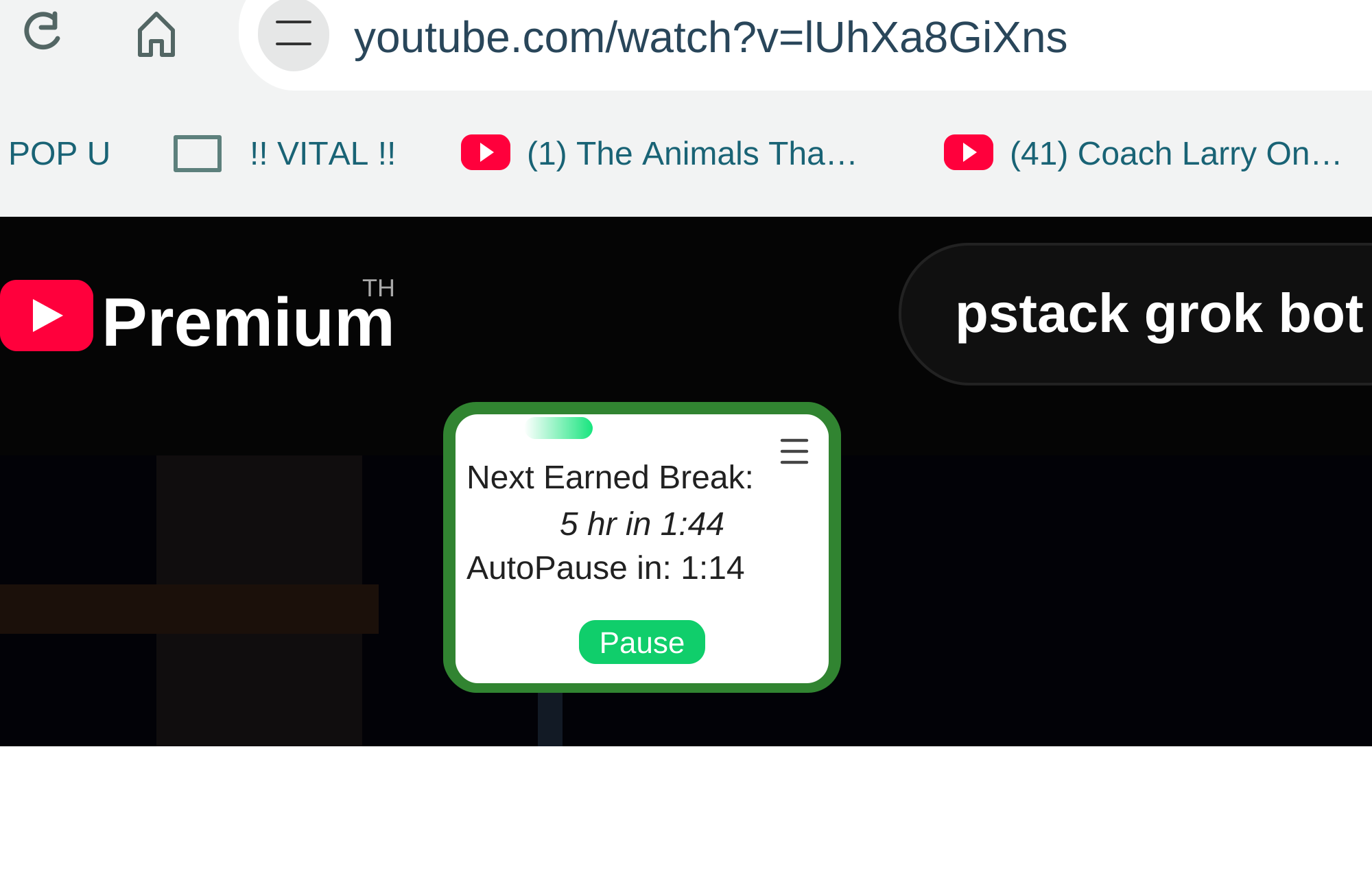
Work earns a break that you can define. You don't have to stop working on a dime, when a reward is earned. You can "cash in" your reward in a way that fits into your schedule.
In this example, a 5 hour work block, from all rewardable activities, was defined via using Earned Breaks.
Time Span Blocking
If your lifestyle and work habits don't fit Time Blocking, instead of fiddling with your calendar, throughout the day, you can utilize Time Span Blocking, via the chained Earned Break facility. E.g., you can break your day up into a 4 hour block; then a 3 hour block, then a 2 hour block. Flipping a timer is easy for you; keeping score is easy for MyFocusRewards.
Four kinds of time
Every activity is 1 of these 4 types: Rewardable, Important Rewardable, Important Non-Rewardable, or Wasted. Only the rewardable kinds count towards a reward. Wasted time stays visible on its own. Turn on Include Important, Non-Rewardable time in Breaks in Settings if you want that time to count toward earned breaks (off by default).
Today’s activities
Start, stop, and mark done from one list. A time estimate sits next to the time already spent. Drag a card to put the day in the order you want — that order stays.
Auto-pause
Auto-pause protects you from 'earning' runaway credit that you don't deserve. It also provides a light-weight, low friction way to trigger a break.
When the auto-pause countdown timer fires, the current activity flashes, and a notification sound plays, subject to you not muting it.
Auto-pause can offer you a break
When Auto-pause fires, Today's Activities offers an optional break. Press the blue Take button to start it — the break timer does not run until you do. Ignore the offer and nothing happens; it lasts as long as the pause, and goes away if you start, switch, or stop an activity.
While it runs, the row shows a countdown such as Auto-Pause Break: 9m 36s, then Auto-Pause Break Over. This is not an Earned Break: it does not affect rewardable time, earned-break progress, chains, or cash-in, and it does not reset your Auto-pause budget. Turn Auto-pause break off in Settings to skip the offer, or set the length from 5 to 25 minutes (default 15, on by default).
Work and rewards that repeat
An activity can be recurring. A reward can arm again immediately, or once per period. Even a non-recurring reward you have already claimed can be recharged and earned again.
Cash in all of it — or a fair share
Claim the full prize, or a prorated part of a timed reward. A minimum stops a tiny slice from being cashed. What you have earned stays claimable through a grace window after the period ends.
Grace period scales with the Reward time basis
After the time period on which the Reward is based ends, an unclaimed completed or partial reward stays claimable for an additional grace period.
| Type | Grace |
|---|---|
| Daily | 1 day |
| Semi-Weekly | 3 days |
| Weekly | 7 days |
| Monthly | 20 days |
| Quarterly | 45 days |
| Yearly | 120 days |
Sounds for the moments that matter
Auto-pause, an earned break, and a reward each have their own sound and mute. One volume covers all three, and one mute silences everything. Preview each sound in Settings.
A weekly report
Step through Monday-start weeks. See time by activity type, what you finished, rewards you earned, and rewards still available.
Finished work leaves the day
Completed activities move into a collapsible done list, then into a logbook on the schedule you pick: daily, weekly, or right away. Restore one, or remove it from view. Time already counted toward rewards stays counted.
The day runs through the late night
The day changes at 3 AM in your local time. Work after midnight still belongs to the day you started. A timer that is still running crosses that line without you pressing Start again.
A dropped connection still counts the press
If the network fails, Start, Stop, and Auto-pause are credited from when you pressed them, within a bounded window — not from the moment you reconnect. Other open tabs catch up to the same timer.
Phone and computer, same app
Use it in the browser on a phone or a larger screen. Sign in with email or with Google. A 14-day trial includes the full app; the paid plans do too.
Desktop-Companion (Windows)
A widget that stays in sight
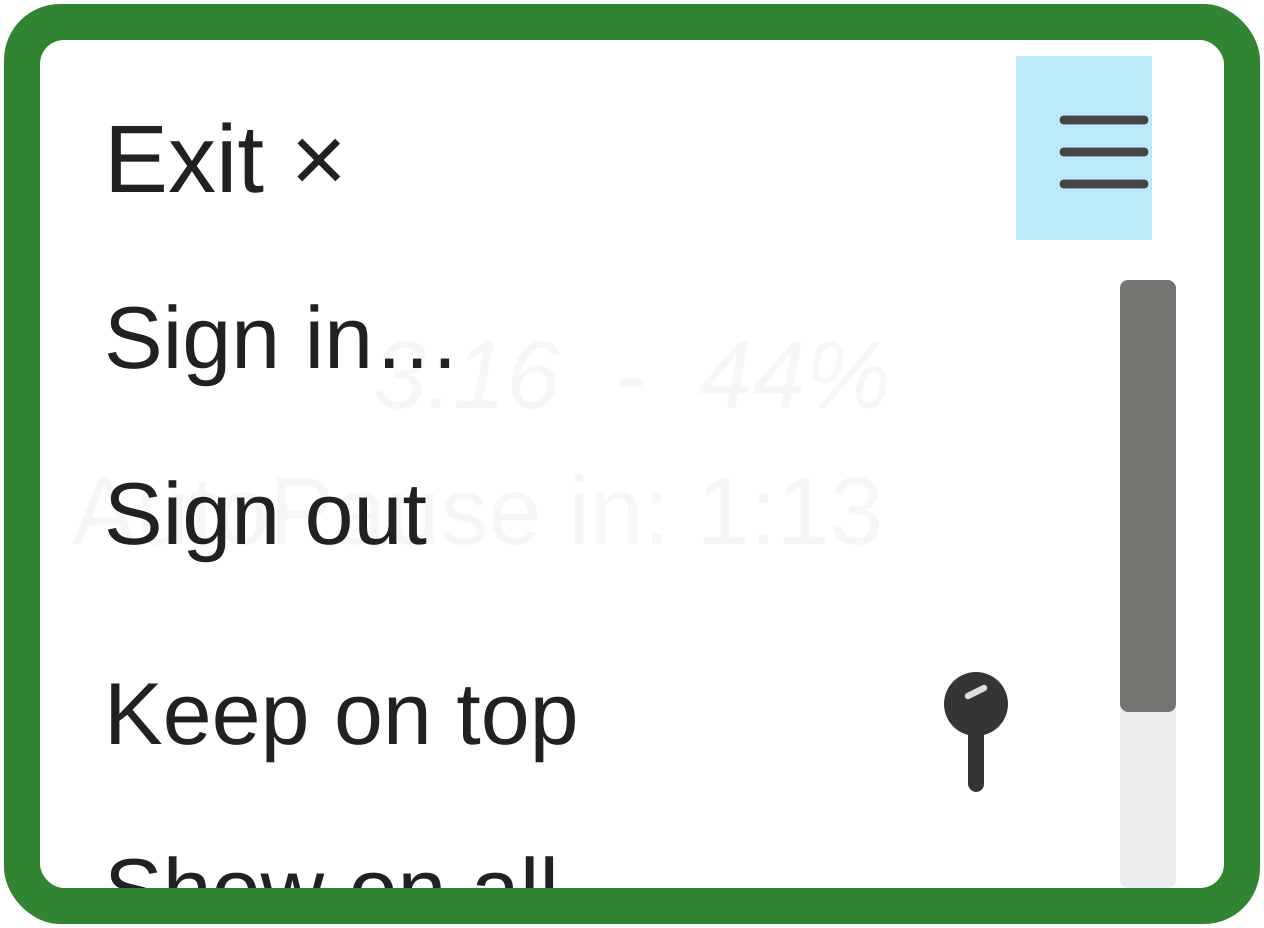
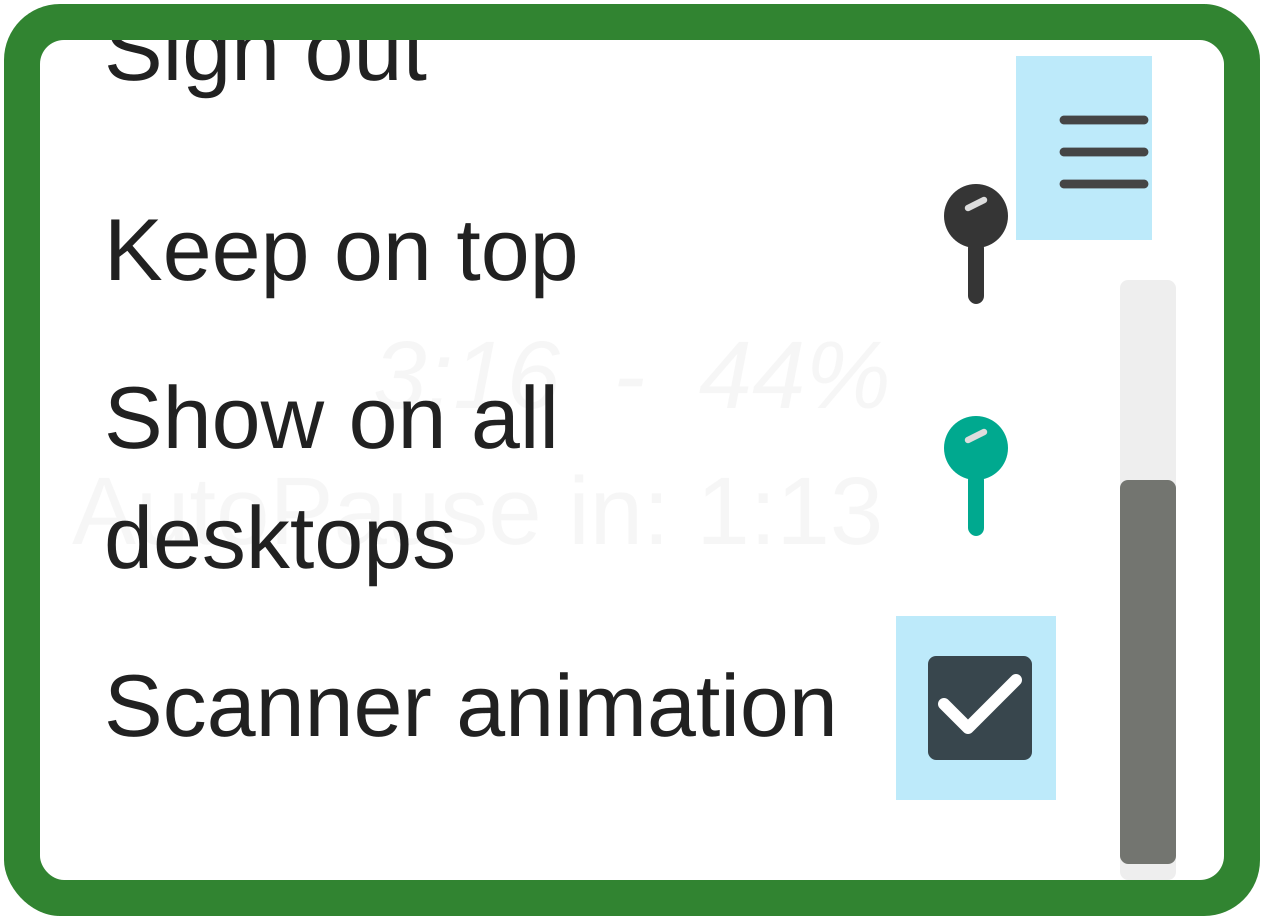
The companion is a small window you can drag anywhere. From the menu you choose Keep on top and Show on all desktops, so today’s time can stay above other windows and remain visible after you switch virtual desktops.
Today without opening the browser
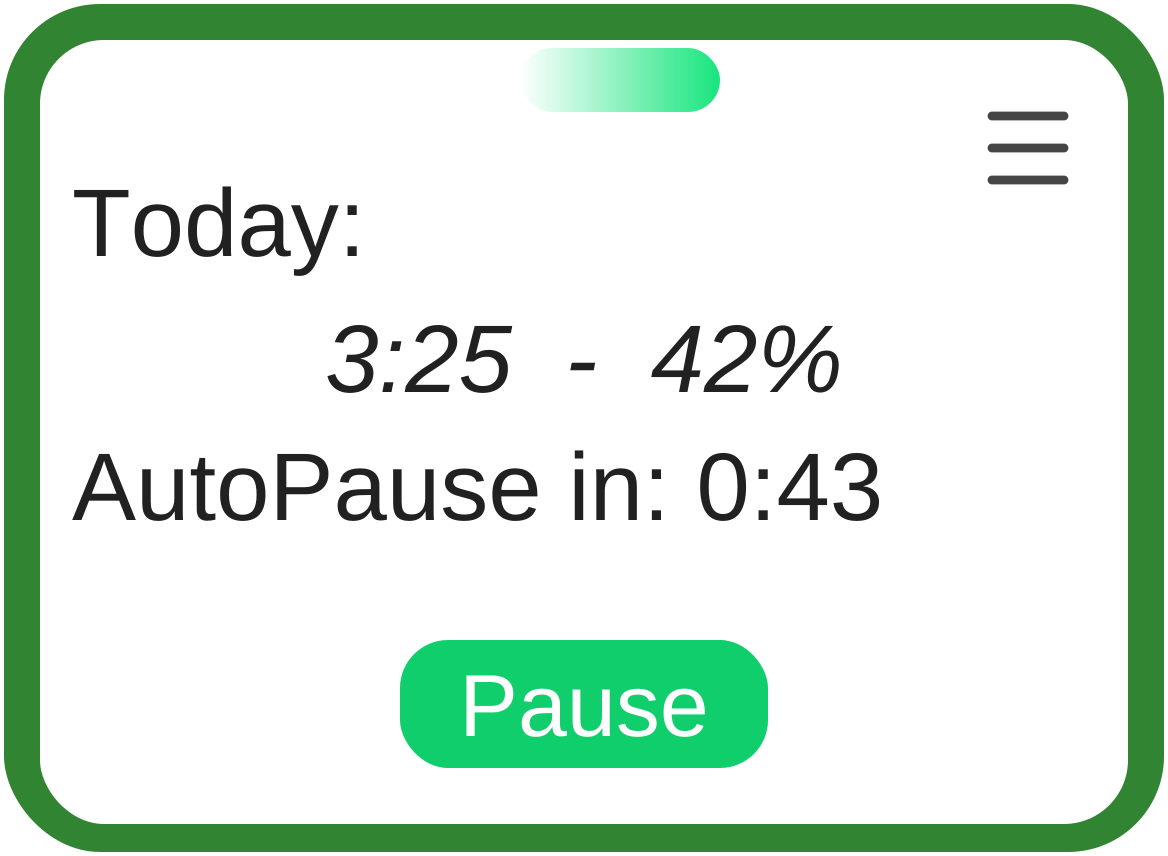
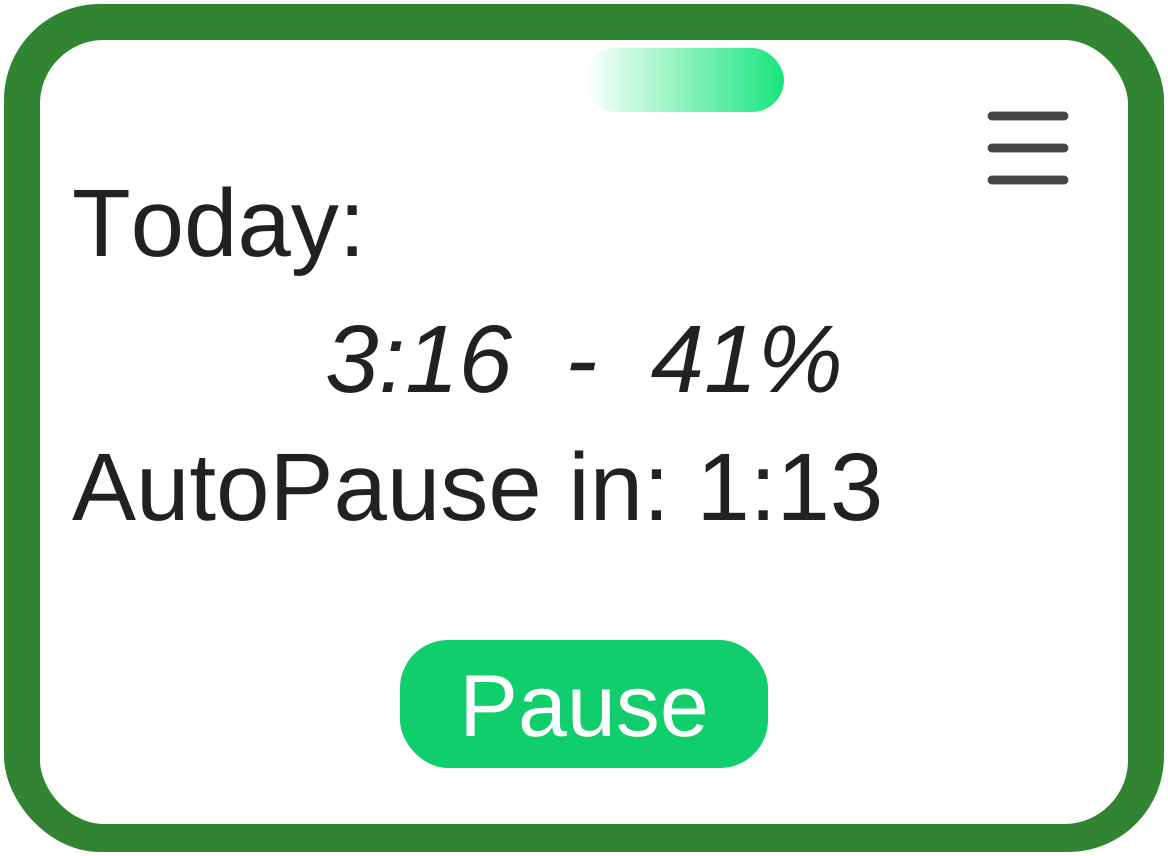
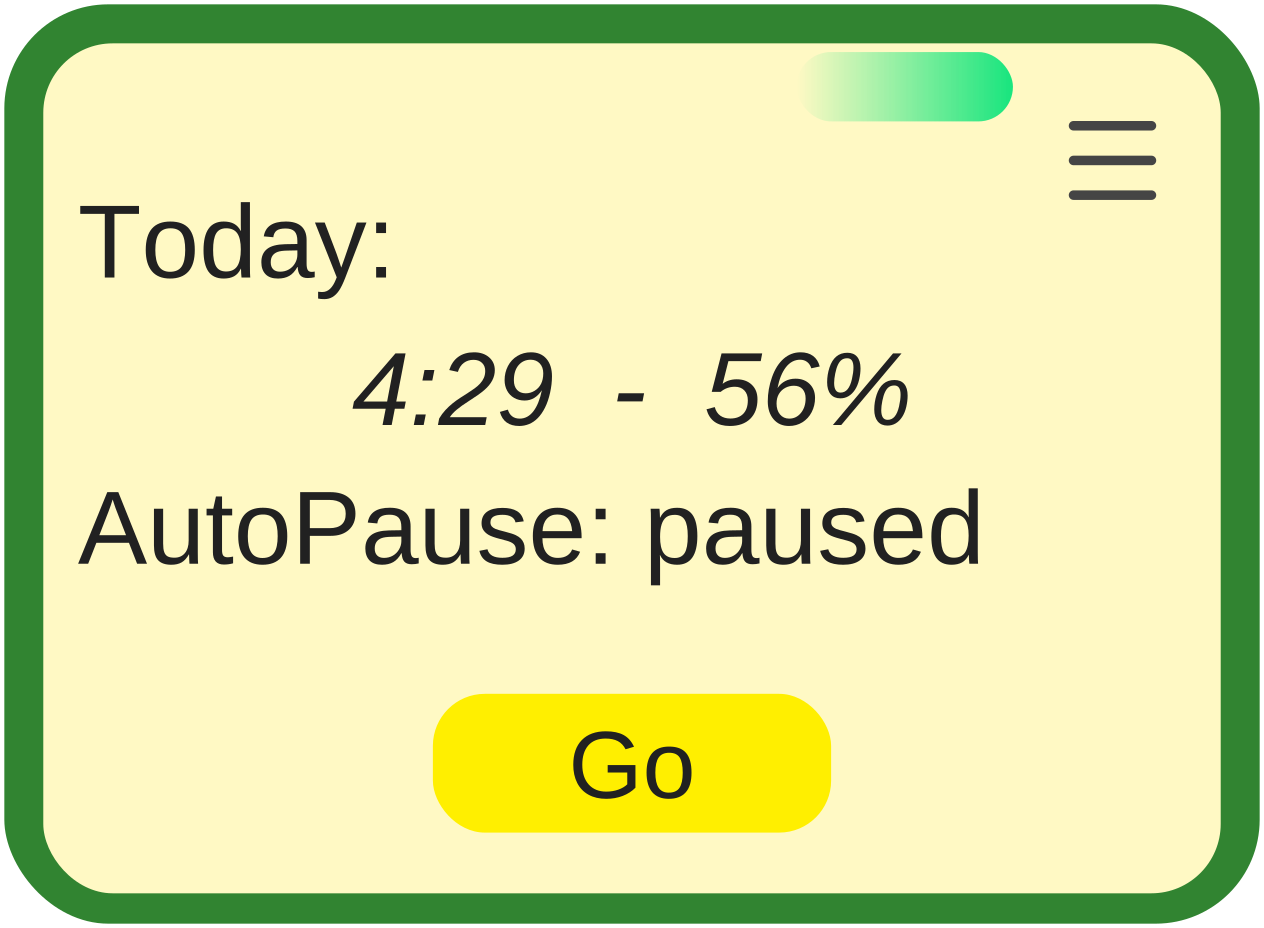
While you are signed in, a widget view shows today’s rewardable time and percent, and how much Auto-pause budget is left. The day still turns over at 3 AM, same as the web app.
Start and pause from the desktop
Go starts the current activity. Pause stops it. The press is stamped from the computer’s clock, so a start or pause counts from when you clicked — even with the browser closed.
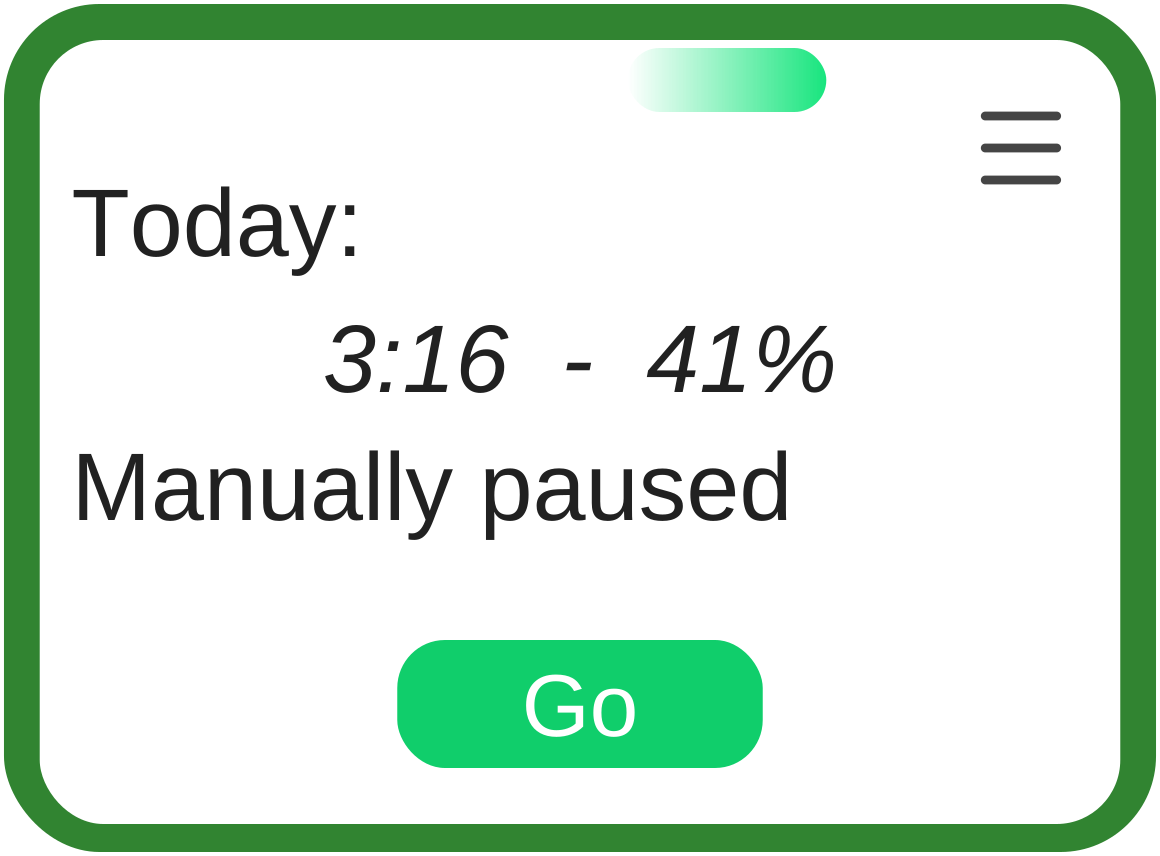
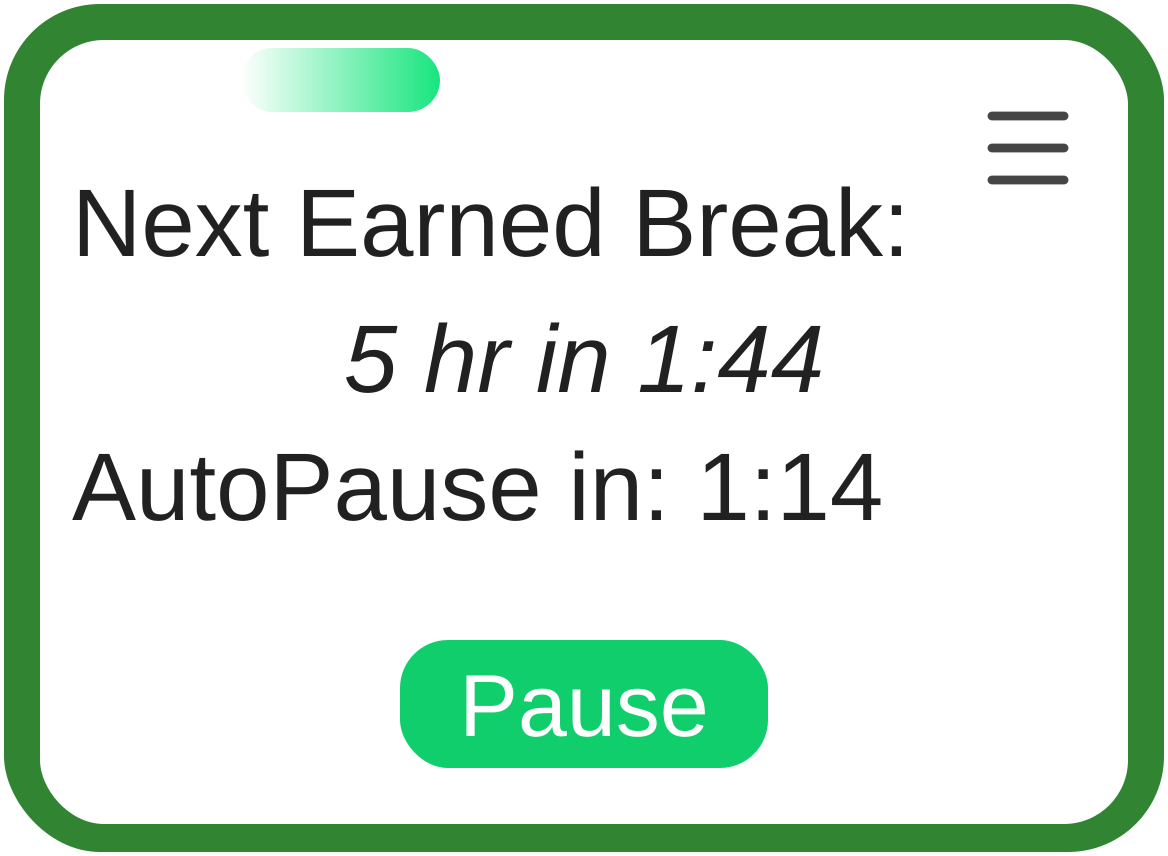
Three views, or one you pin
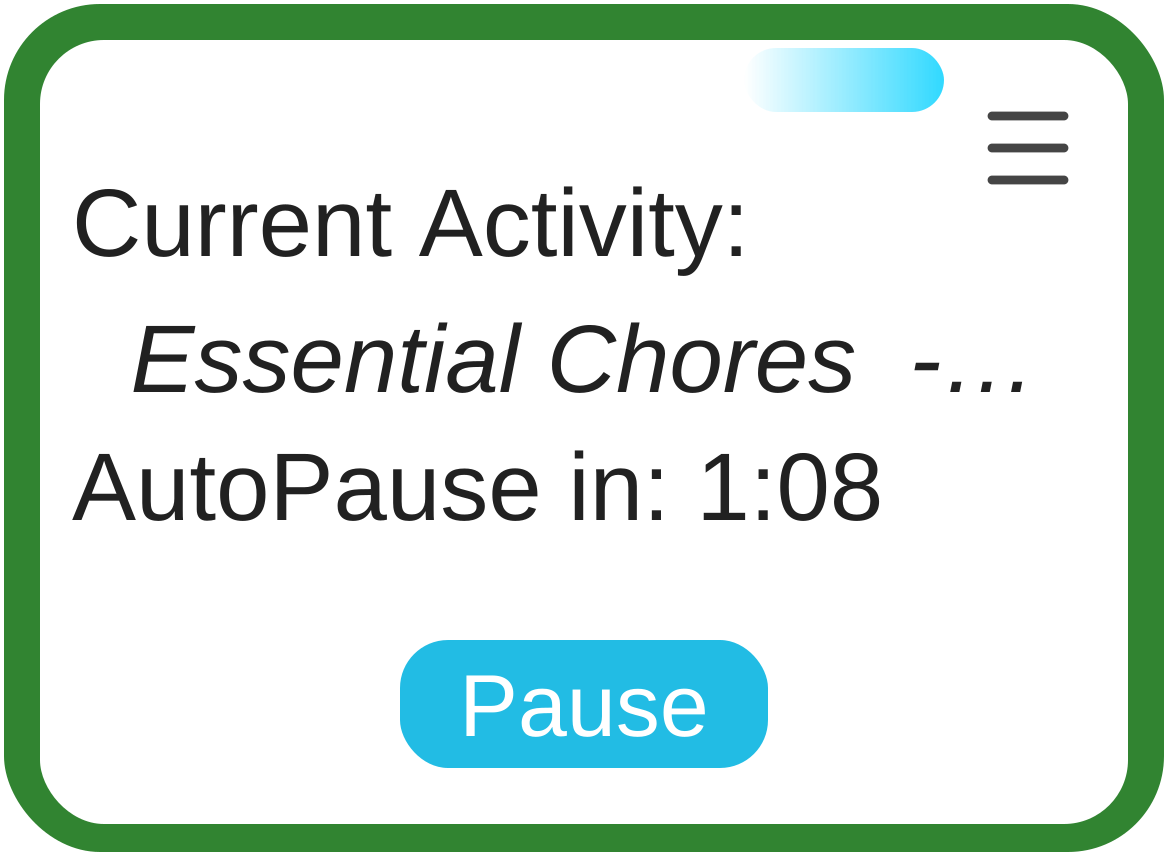
The top of the widget rotates among today, the next earned break, and the activity that is running. Double-click to hold one view.
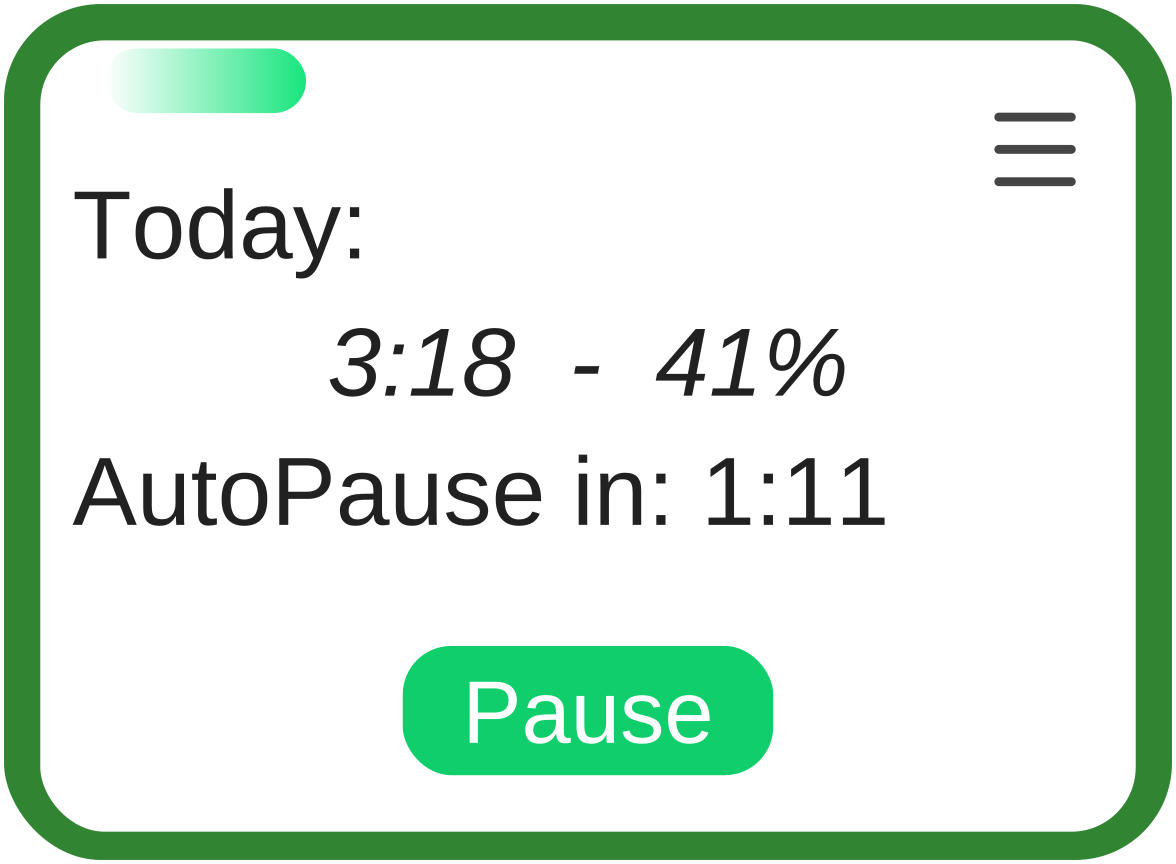
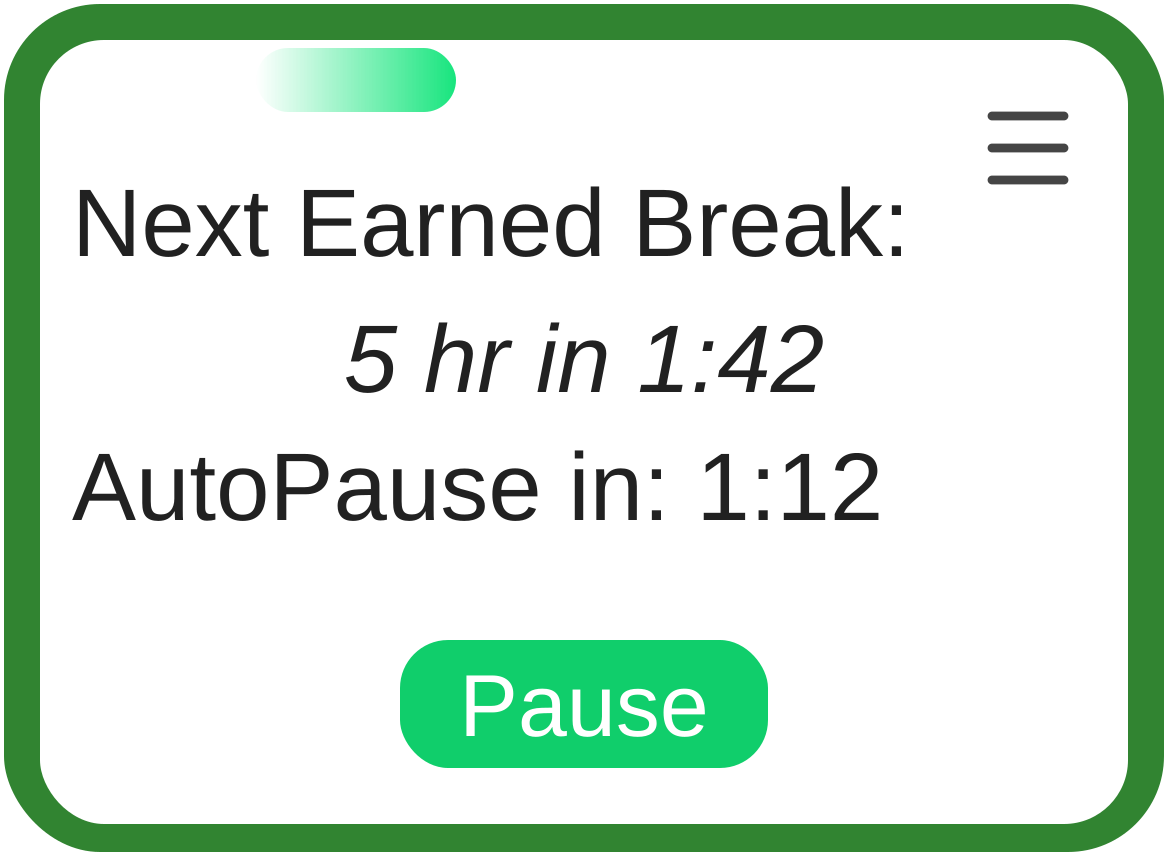
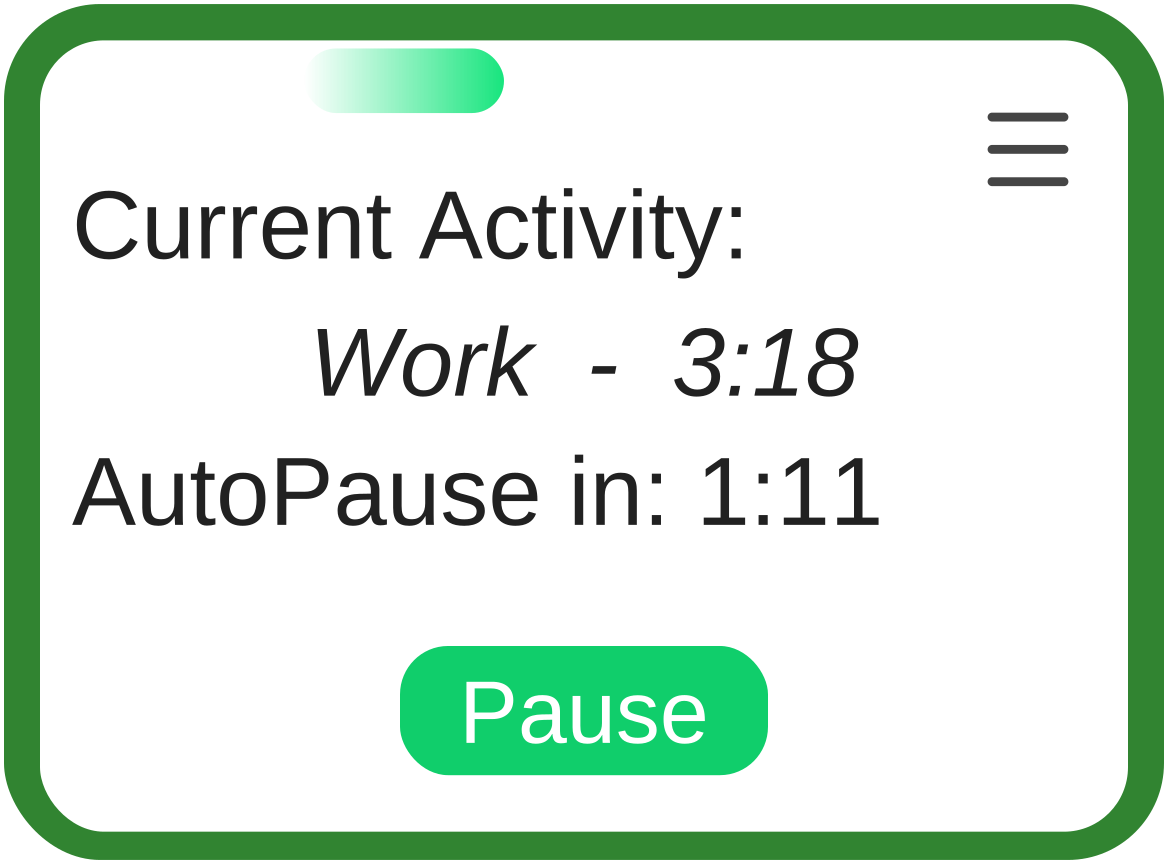
A scanner that says running — and what kind
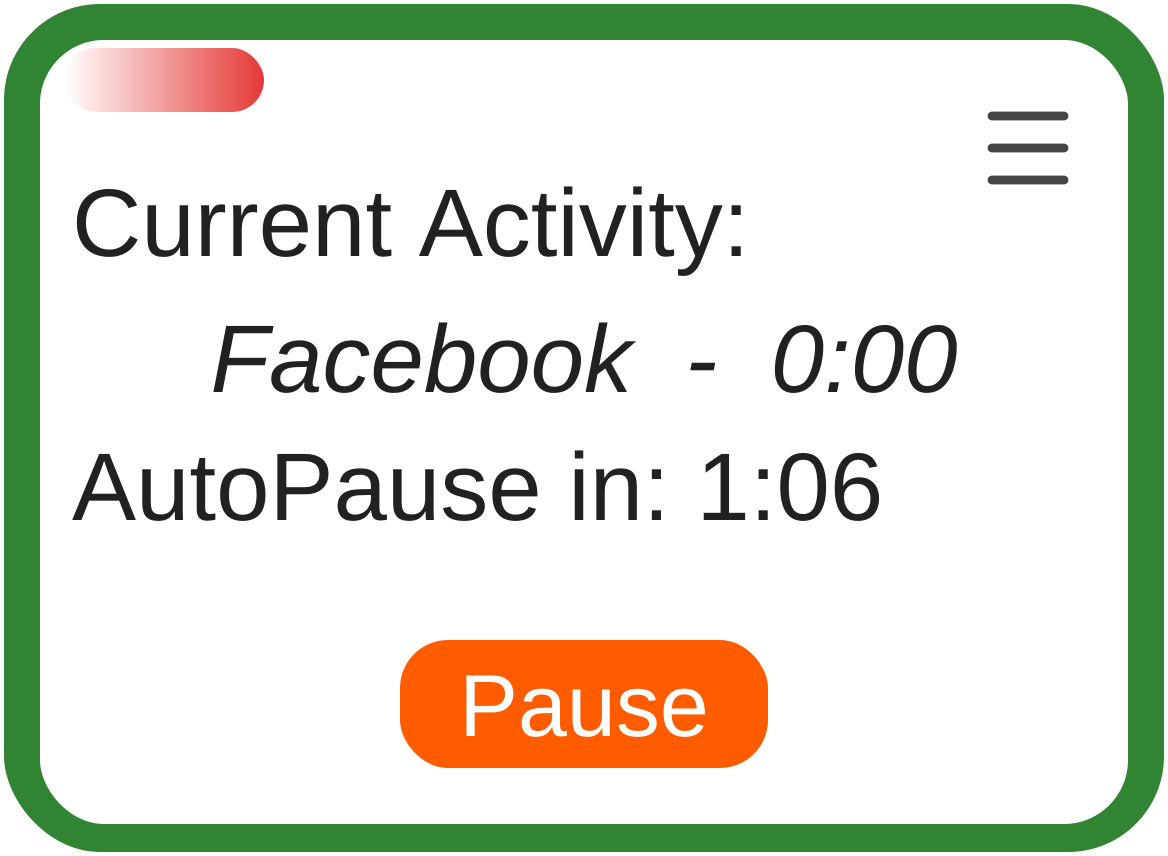
A bar across the top sweeps while an activity is running and holds still when it is not. Green represents a Rewardable activity, blue represents Important Rewardable, while red represents a Wasted or Important Non-Rewardable activity. Beware the red zone! Turn Scanner animation off in the menu if you want the color without the motion.
Auto-pause on the widget
The third line counts down to Auto-pause, then shows paused when the budget is gone or you paused by hand. The background color switches to yellow when Auto-pause fires.
Sign in once on this computer
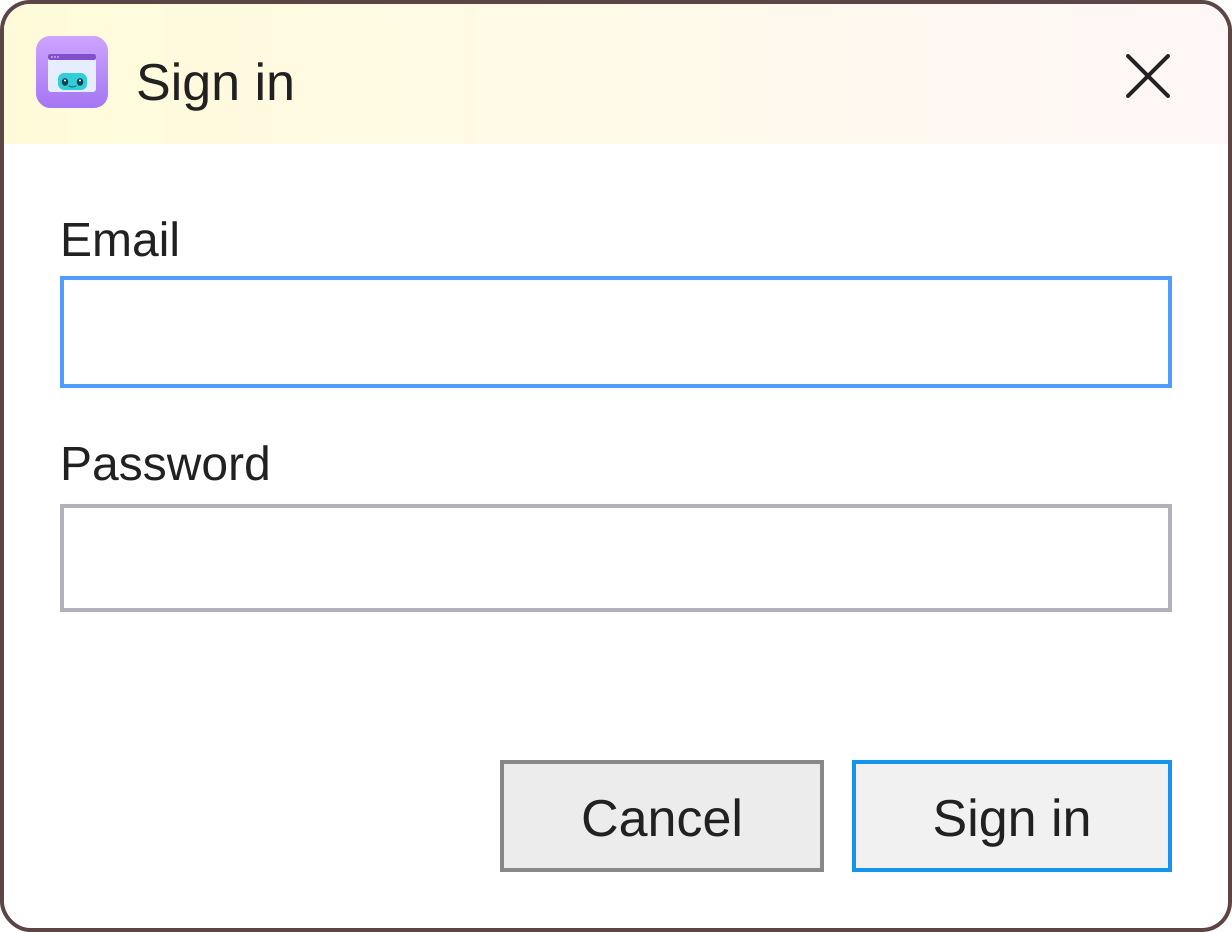
Open the hamburger menu, sign in with the same email and password as the site, and the session stays after you close the widget or restart Windows. Sign out from that same menu — along with Keep on top, Show on all desktops, and Scanner animation.
Installs for you — and can start with Windows
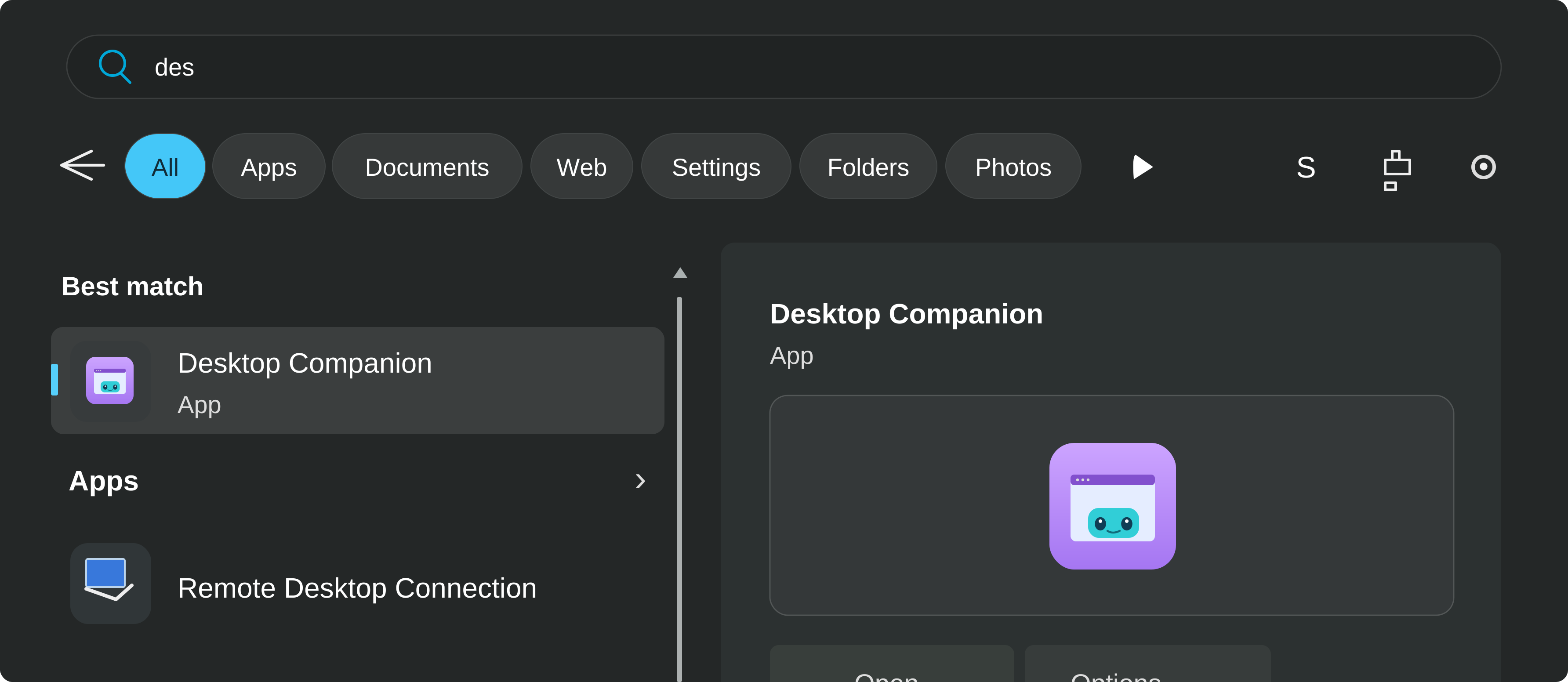
The installer does not need an administrator. It can put the companion in the Start Menu and, if you want, start it when you sign in to Windows. Uninstall leaves your settings and saved sign-in so a later install can pick them up.
Ready when you are
Start the 14-day trial in the browser. Add Desktop-Companion when you want today’s time always in sight.